
What if you could not only see and hear the virtual worlds you build, but truly feel them? Imagine the subtle click of a switch, the rough texture of a stone wall, or the powerful recoil of a weapon in your hands. For years, the absence of realistic touch has been the final barrier to true digital immersion. That barrier is now starting to crumble.
As a Senior VR/AR Developer at R3D HILLS, I’ve seen many technologies promise to deepen immersion, but few are as accessible and powerful as Meta’s new suite of haptic tools. This Meta Haptics Studio Unreal Engine tutorial is more than just a guide; it’s a comprehensive look at why this technology is a game-changer and a step-by-step walkthrough of how you can implement it in your own projects right now.
Why Meta Haptics Studio is a Revolution for Developers
At its core, Haptic Feedback is any form of interaction that uses the sense of touch. While simple controller vibrations have been around for decades, modern haptics are about creating nuanced, high-fidelity sensations. Meta Haptics Studio is a powerful desktop application that allows developers to design, test, and export these complex tactile effects for use in interactive experiences.
So, why is this so exciting? Because it democratizes high-quality haptics with tools that are:
- Incredibly Fast: The “Design from Audio” feature allows you to generate a complex haptic clip from a sound effect in seconds, providing an amazing starting point for rapid prototyping.
- Deeply Nuanced: Go far beyond simple rumbles. You can design and layer effects to simulate textures, impacts, vibrations, and continuous feedback with surgical precision.
- Blueprint-Friendly: The entire system integrates seamlessly into Unreal Engine via a simple plugin, exposing its functionality through easy-to-use Blueprint nodes. No C++ is required to get started.
Convinced? Great. Let’s get our hands dirty. The rest of this article is a practical, step-by-step tutorial to get you up and running.
The Core Tutorial: From Zero to Your First Haptic Effect
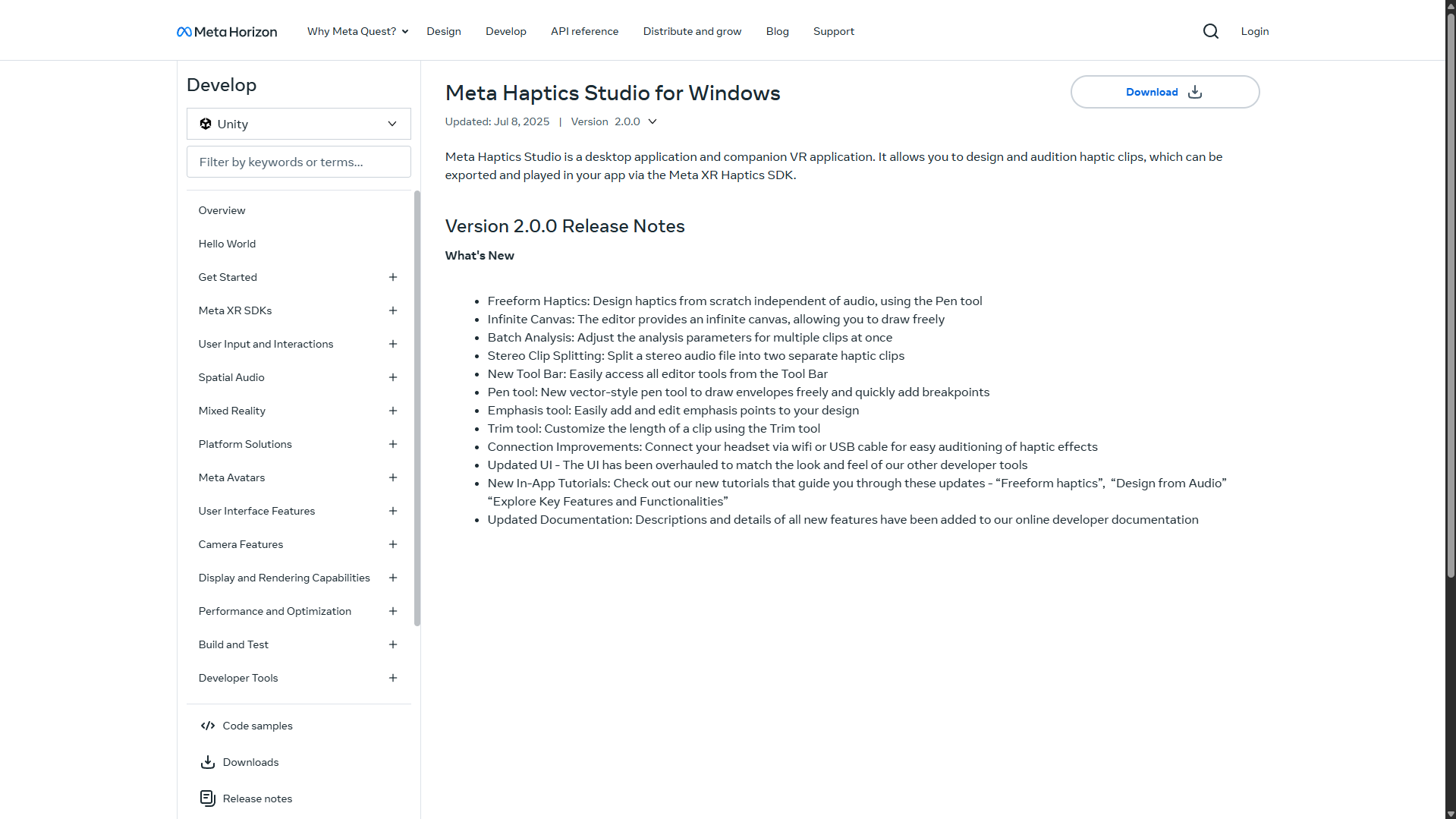
Download Haptics Studio for Windows
Navigate to the Meta Horizon developer portal. You’ll need the main application for designing your effects. Grab it from the official download link.
Download the Haptics SDK for Unreal
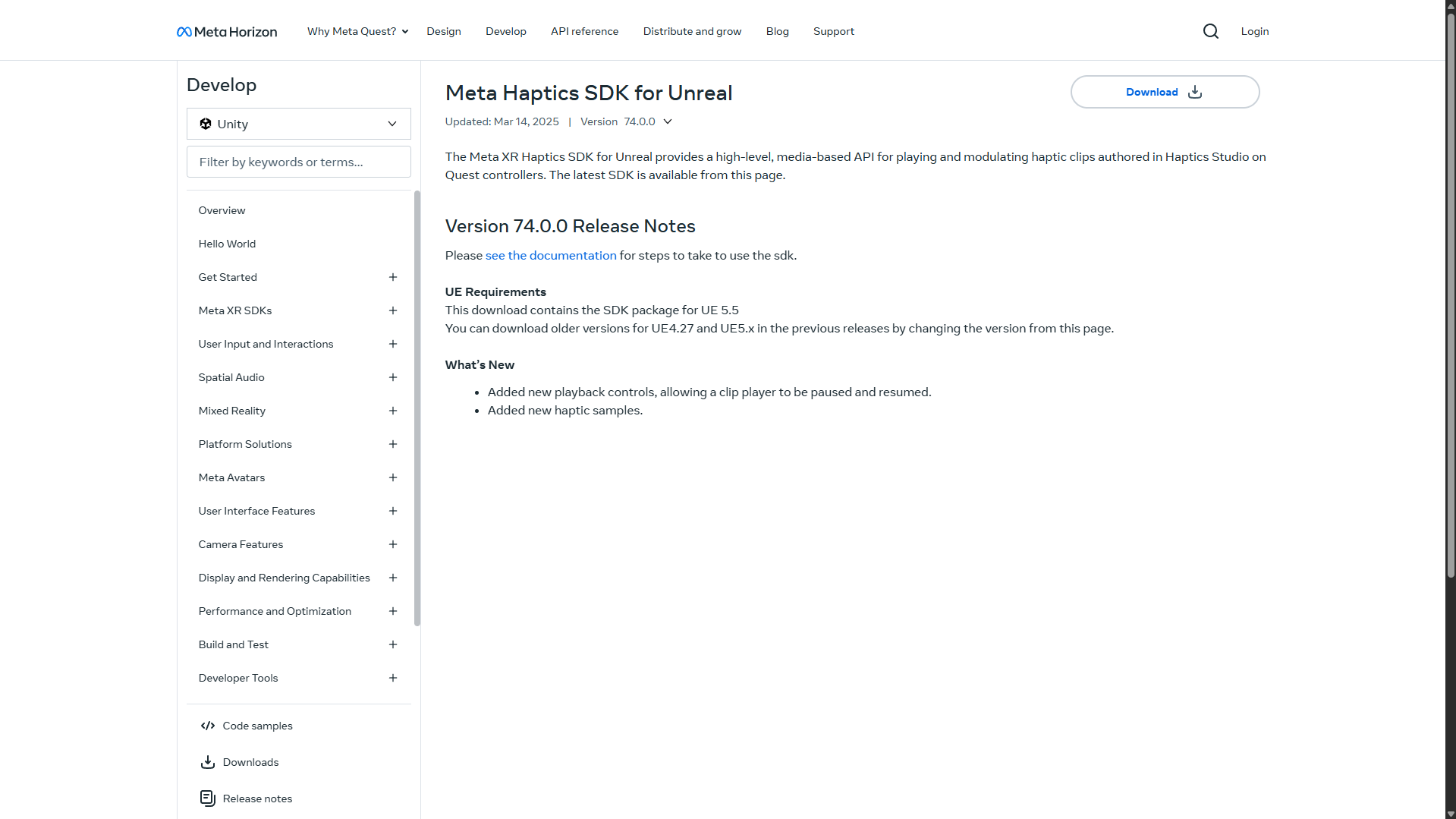
Next, you’ll need the plugin for Unreal Engine. On the same portal, download the SDK from the official SDK page.
Install the Studio & Unreal Plugin
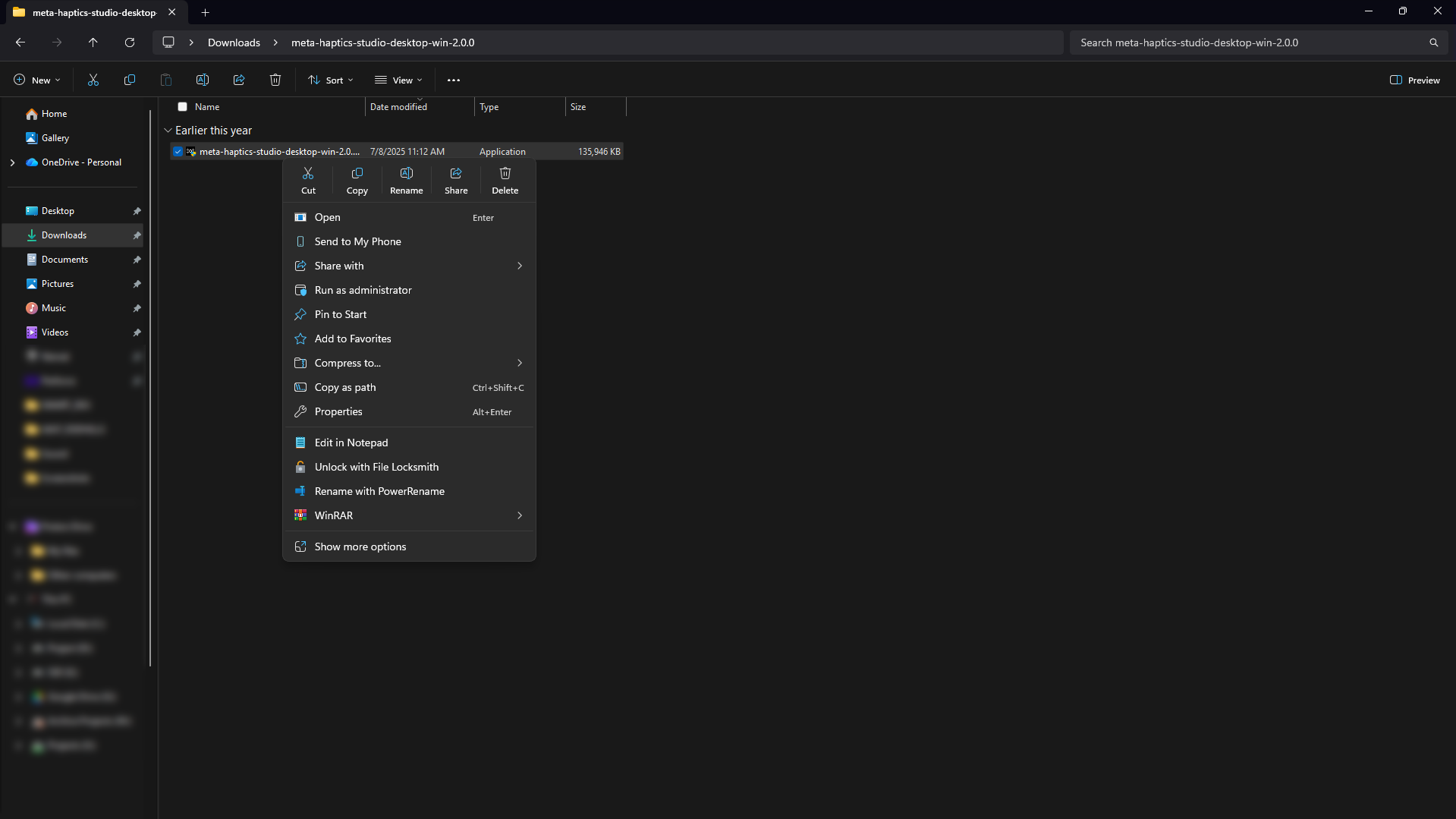
Run the Meta Haptics Studio installer. Then, unzip the SDK you downloaded. Inside, find the MetaXRHaptics folder and copy it.
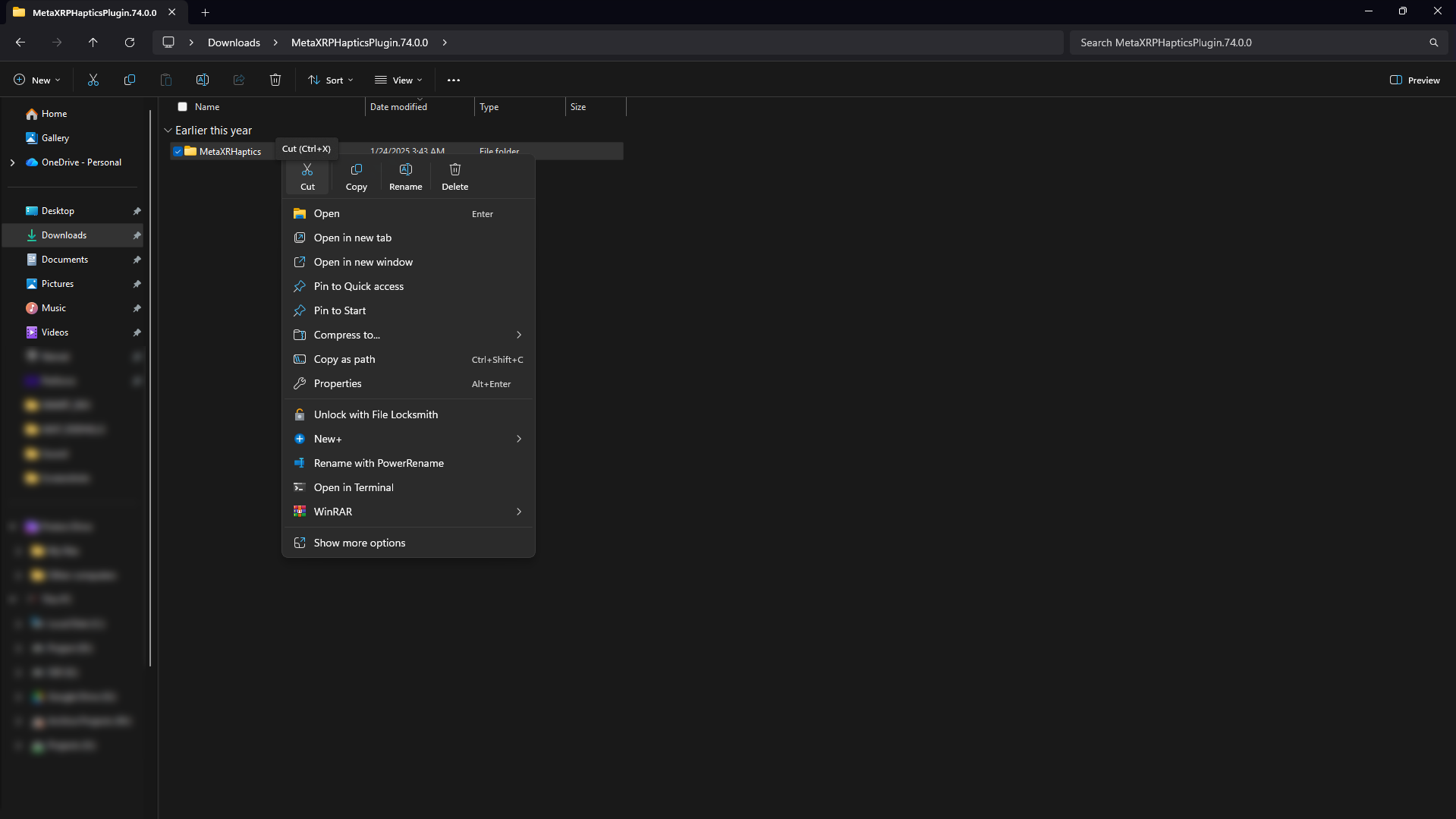
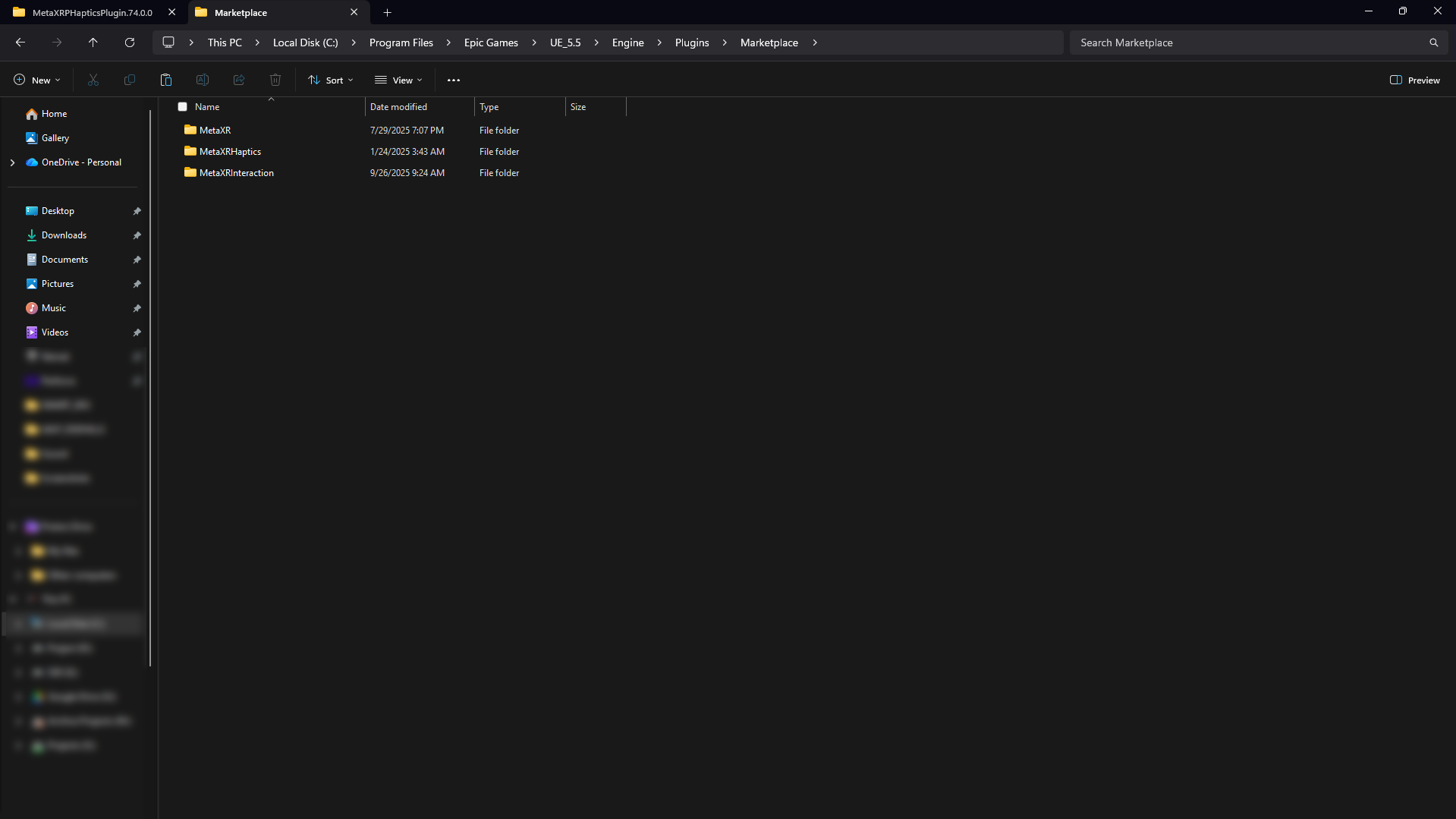
The correct path for engine-wide plugins is your Unreal Engine installation directory. Paste the folder into:C:\Program Files\Epic Games\UE_5.5\Engine\Plugins\Marketplace
Placing it here makes the plugin available to all your UE 5.5 projects.
Install Meta Haptics Studio (on Quest)
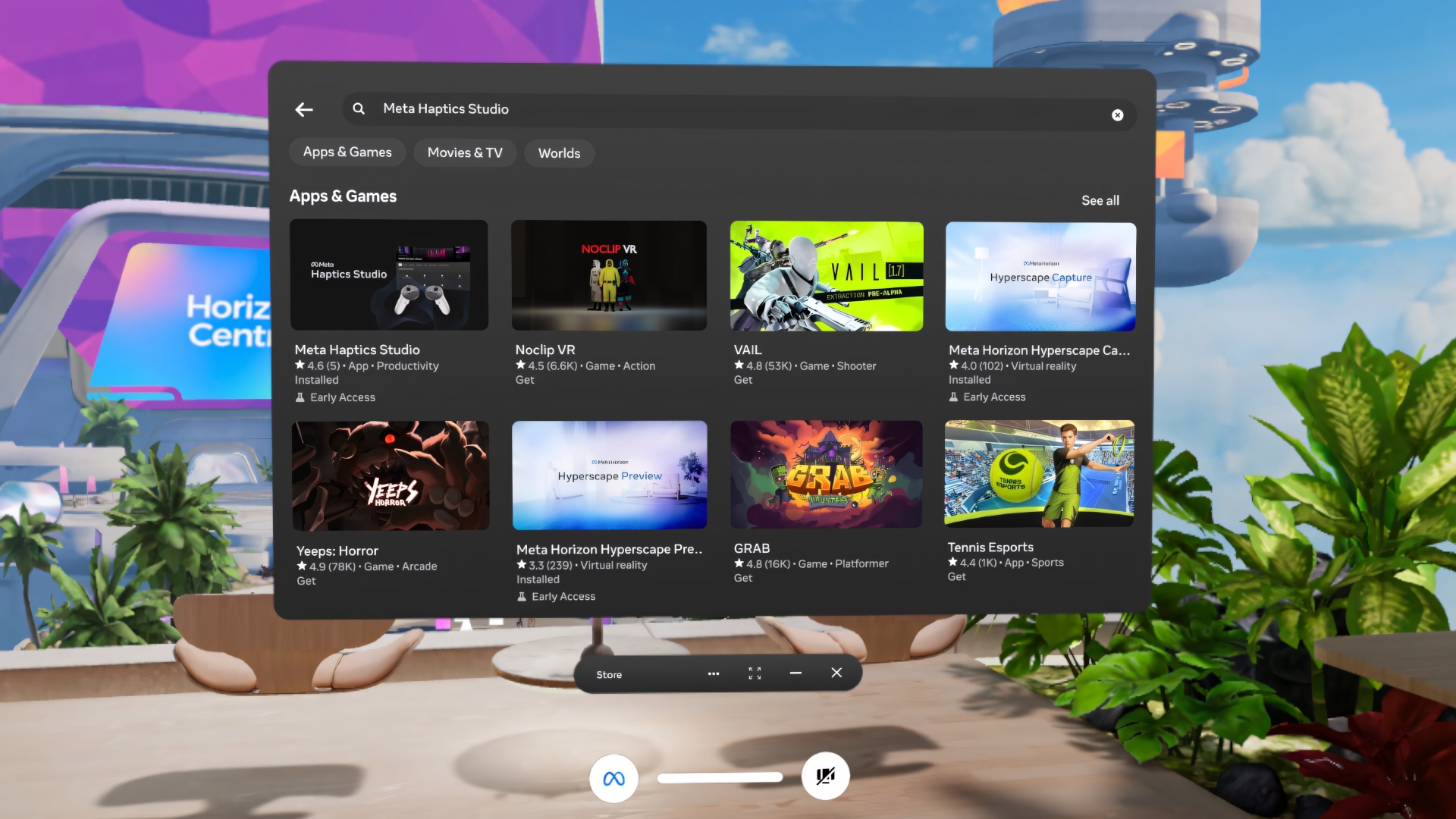
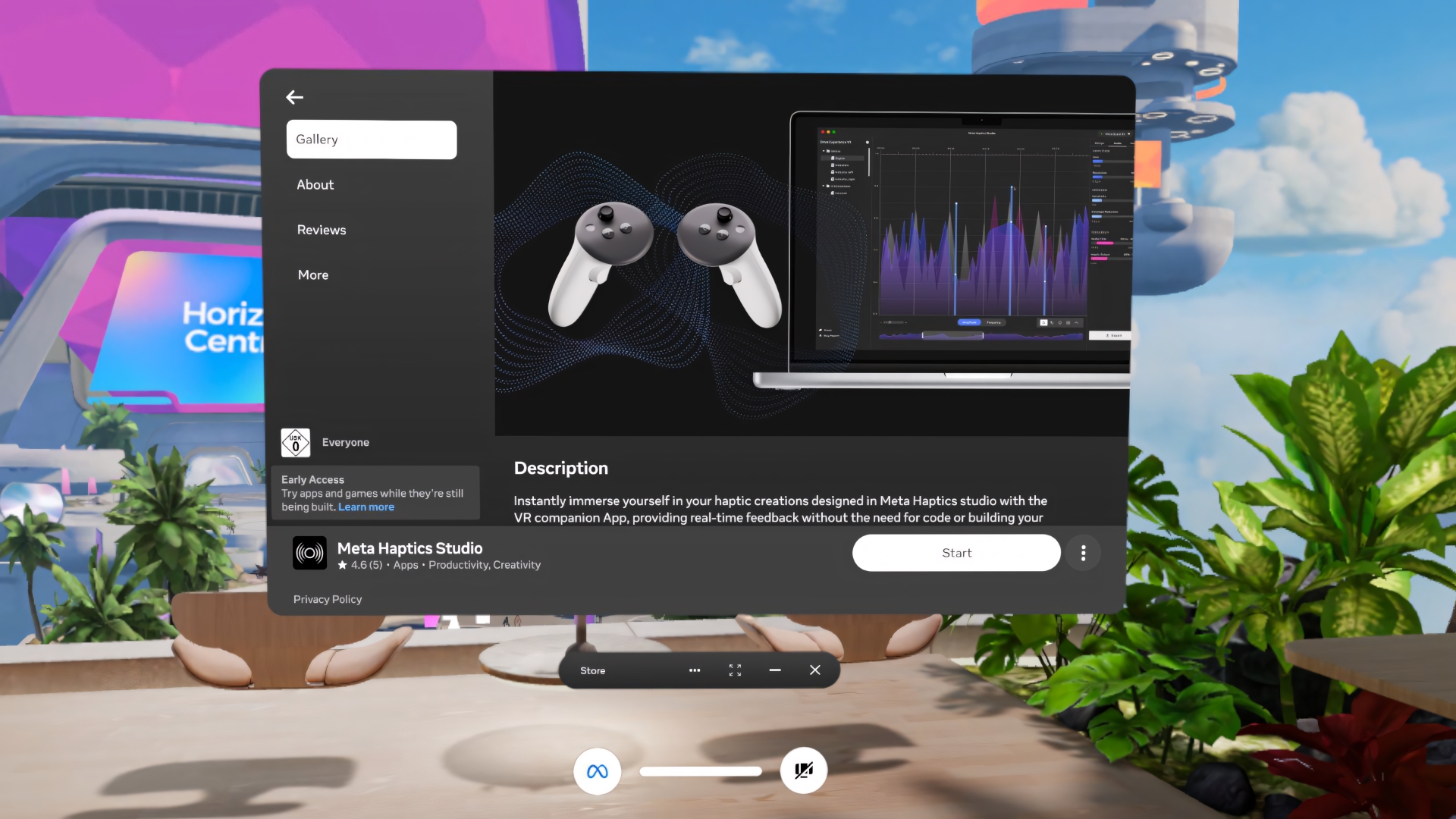
To preview effects live, you need the companion app. On your Quest, open the Store and search for “Meta Haptics Studio”. Download and launch it.
Connect the Quest to Your Desktop
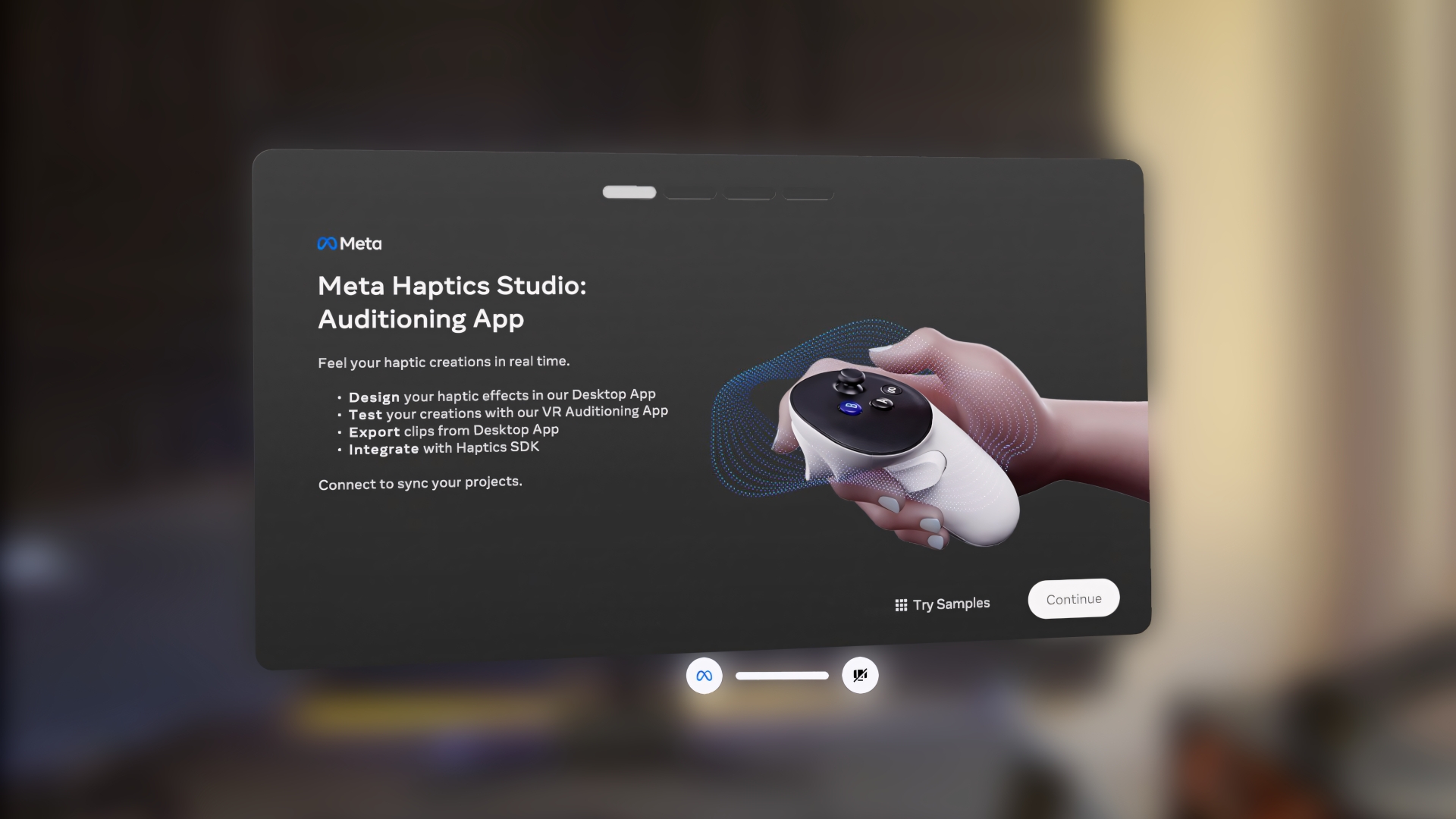
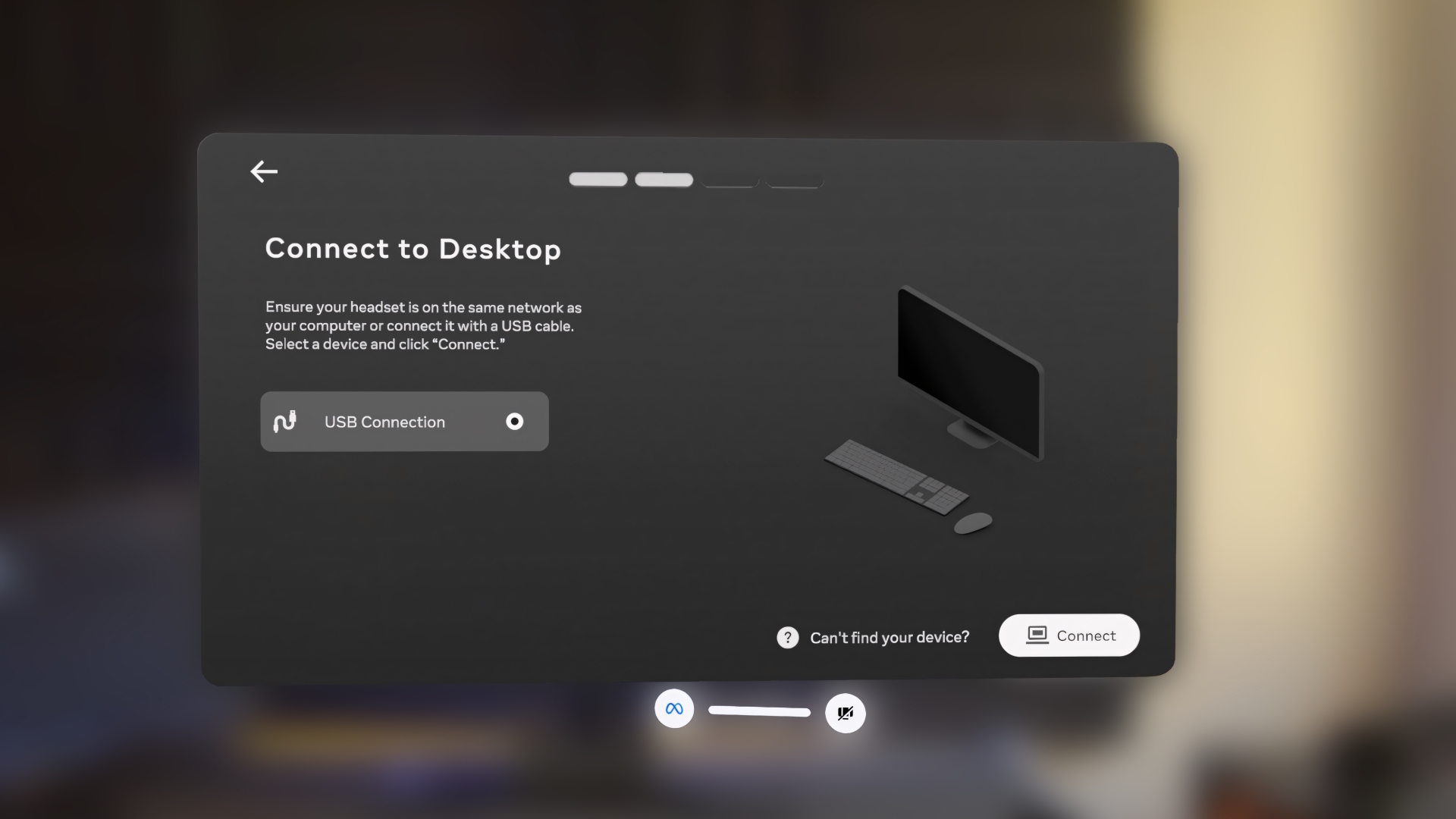
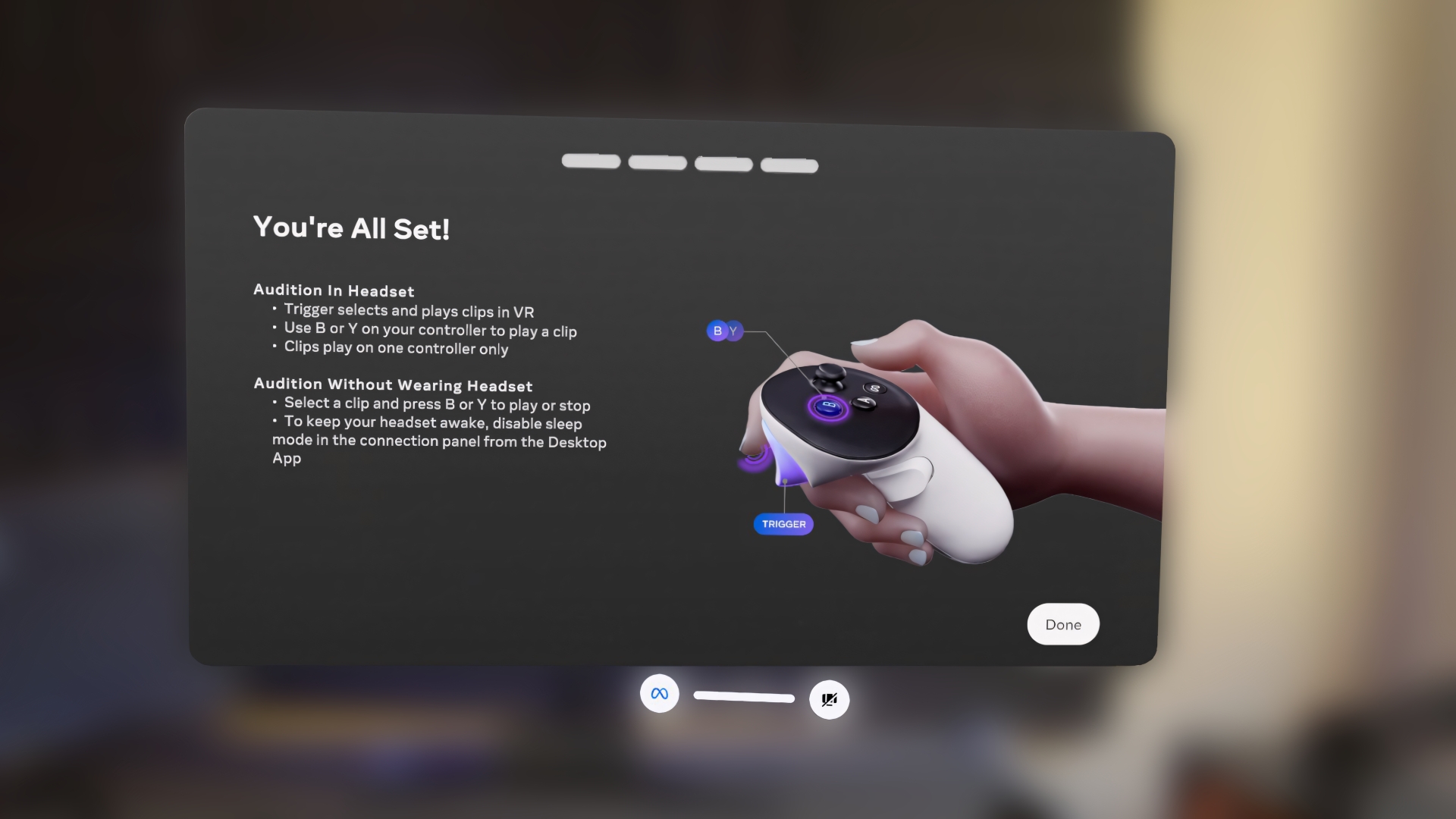
Follow the on-screen instructions in the Quest app to connect to your desktop Haptics Studio. Ensure both devices are on the same Wi-Fi network.
Create & Design a Haptic Effect
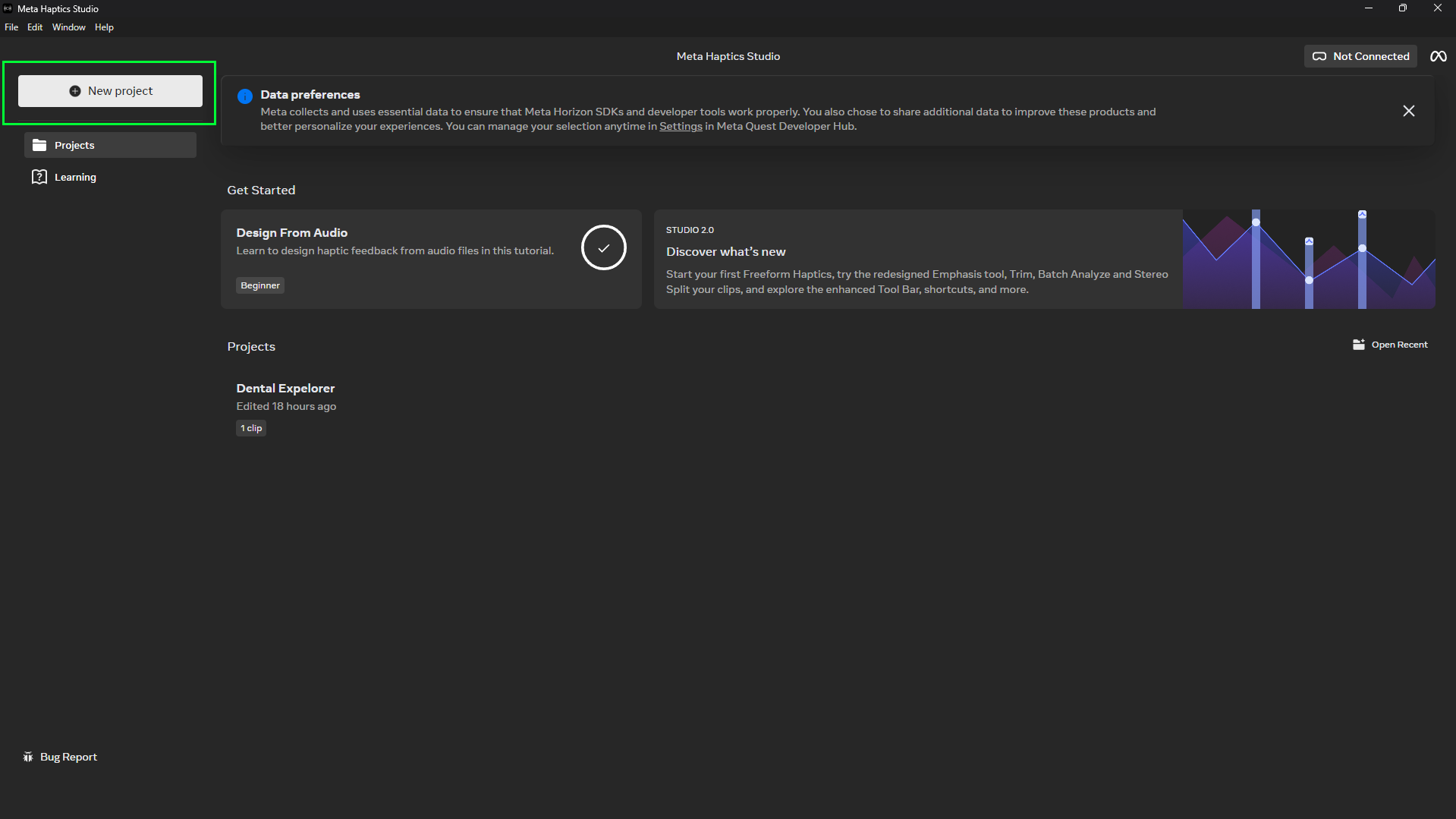
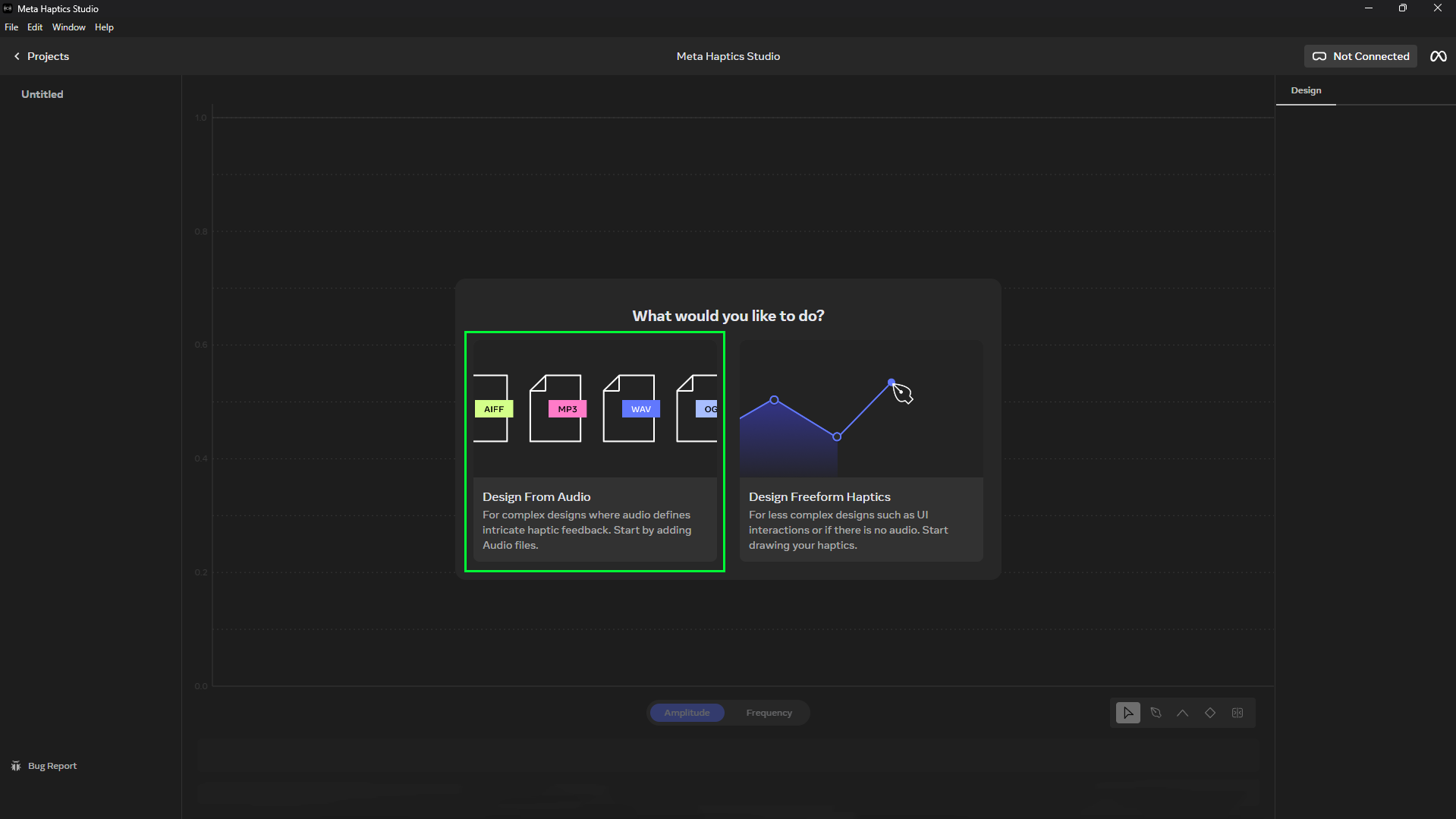
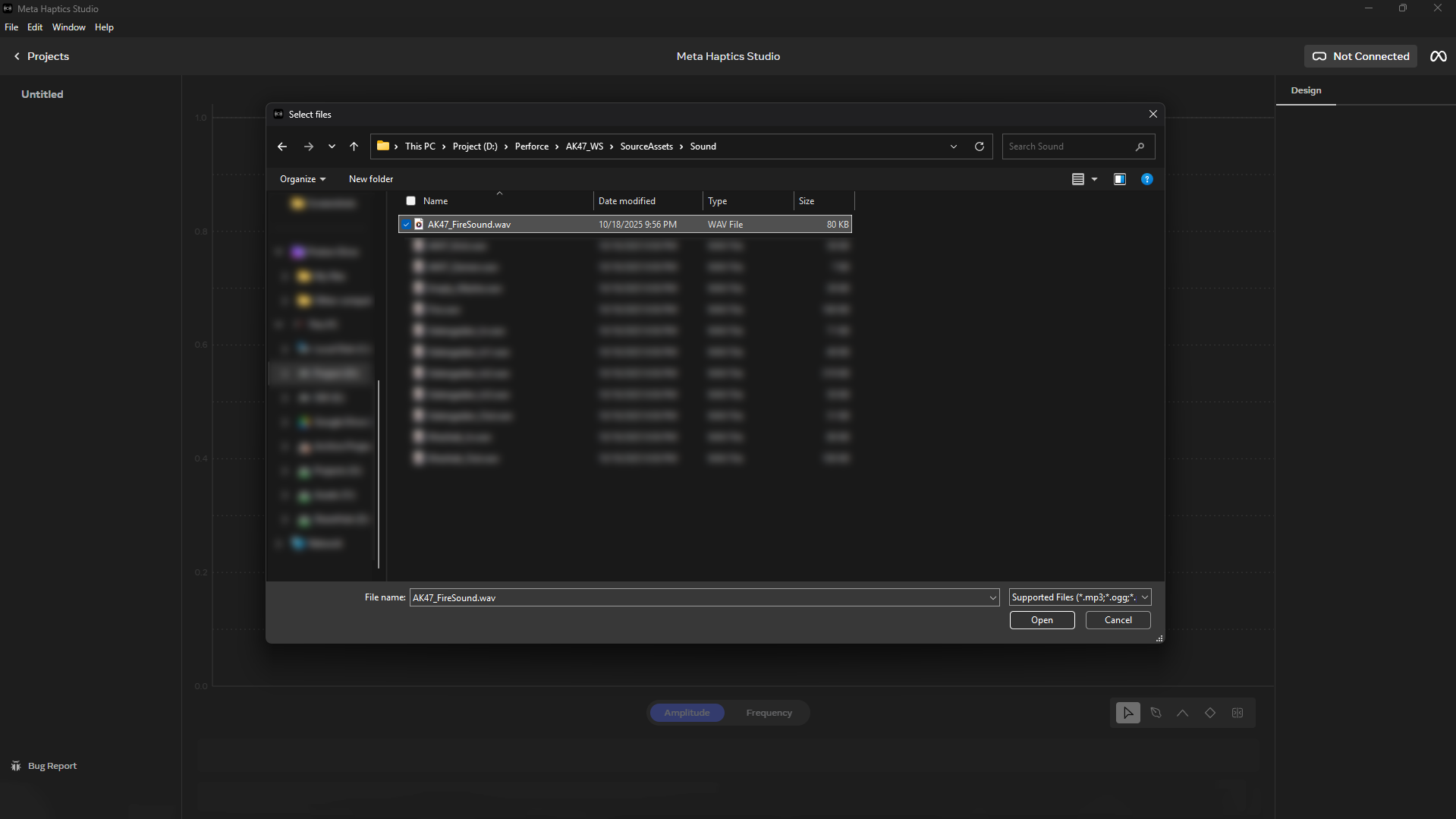
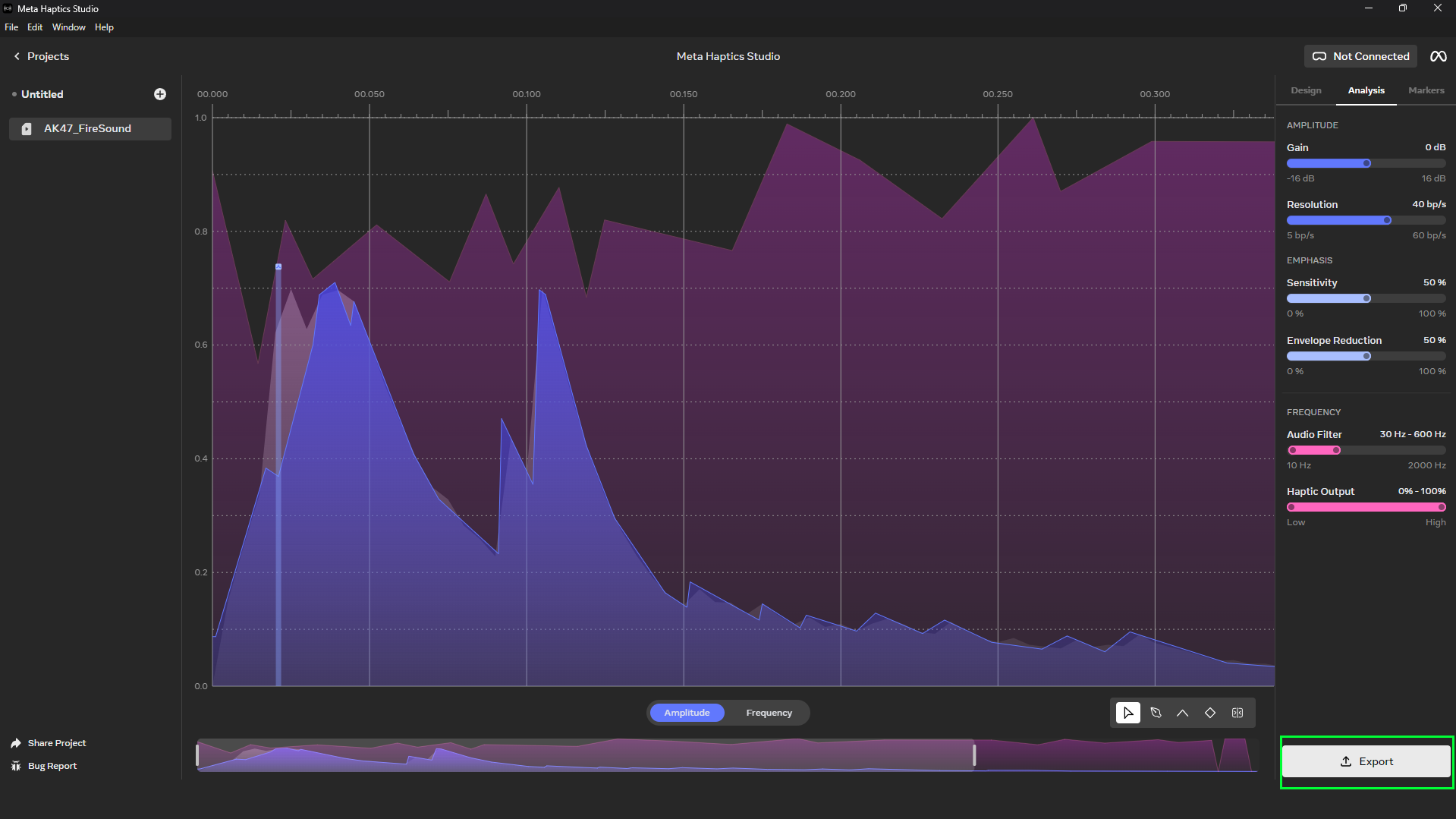
In the desktop Studio, start a New Project and choose “Design From Audio”. Select a sound file to automatically generate a haptic clip.
Fine-Tune and Export Your Clip
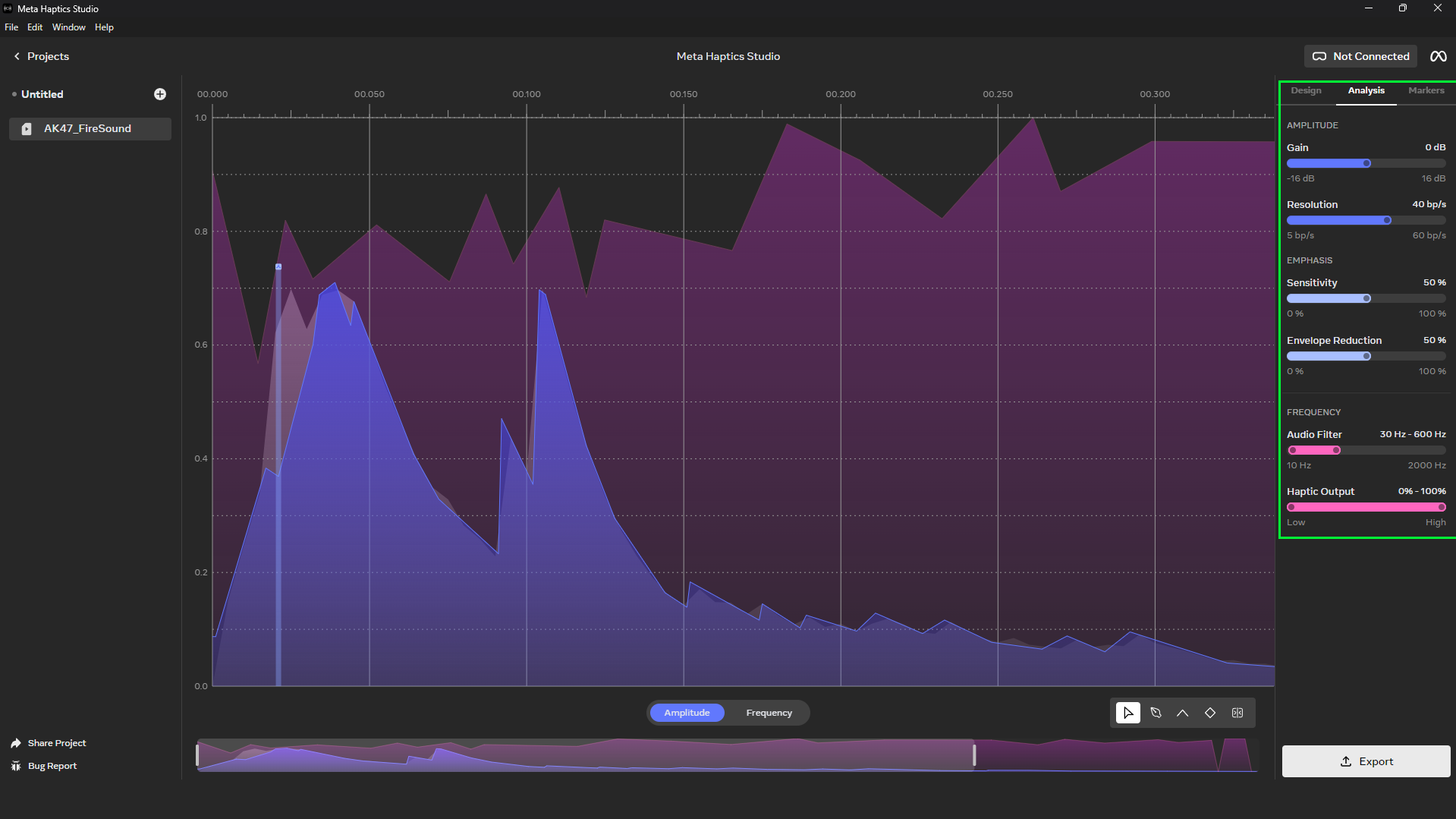
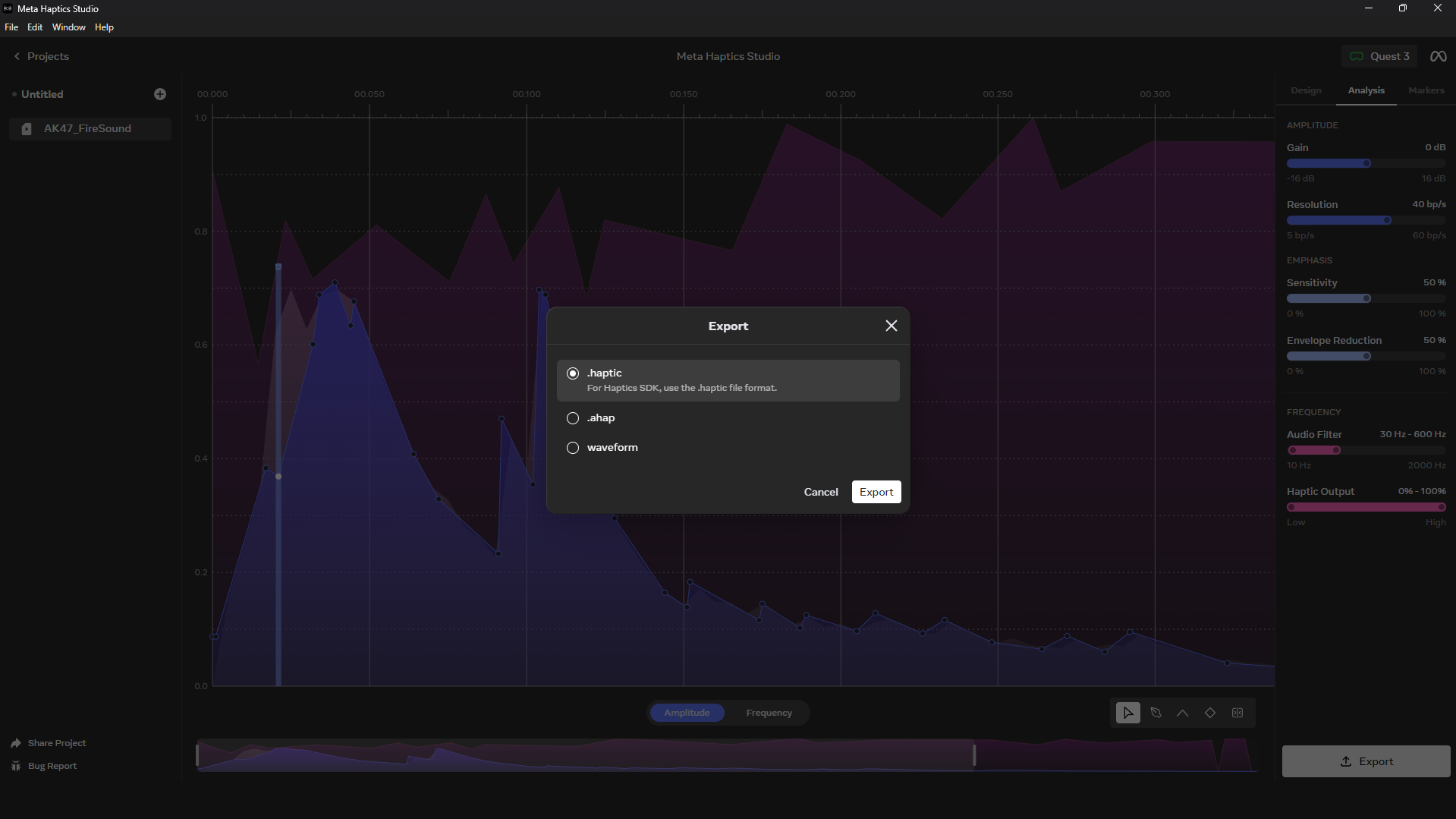
Use the editor to adjust the haptic parameters for amplitude, frequency, and sharpness. When you’re happy with the result, go to File > Export to save it as a .haptic file.
Enable Plugins in Unreal Engine
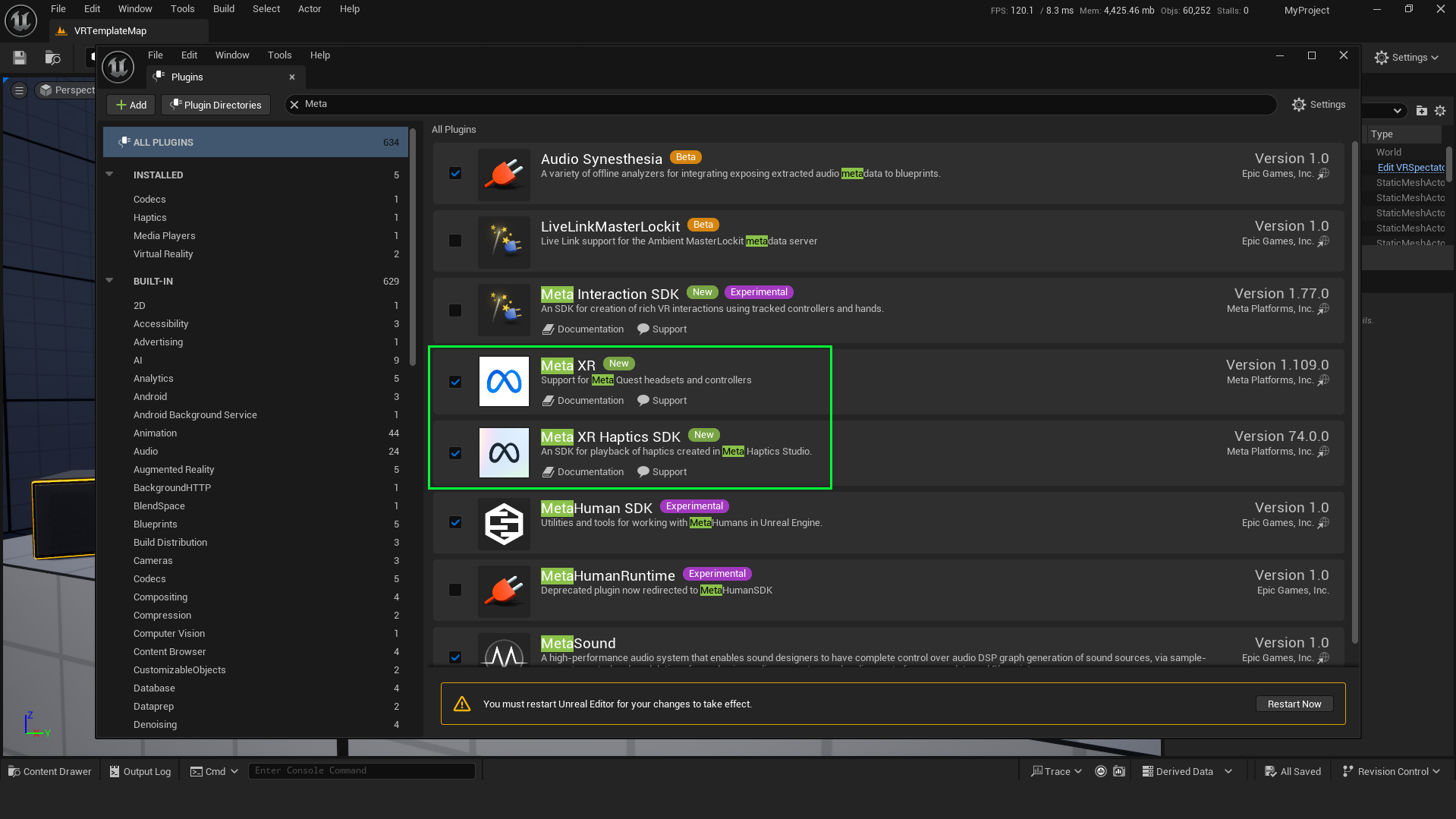
In your Unreal project, go to Edit > Plugins. Enable “Meta XR” and “Meta XR Haptics SDK”. You must restart the editor after enabling them.
Import Clip & Add Component
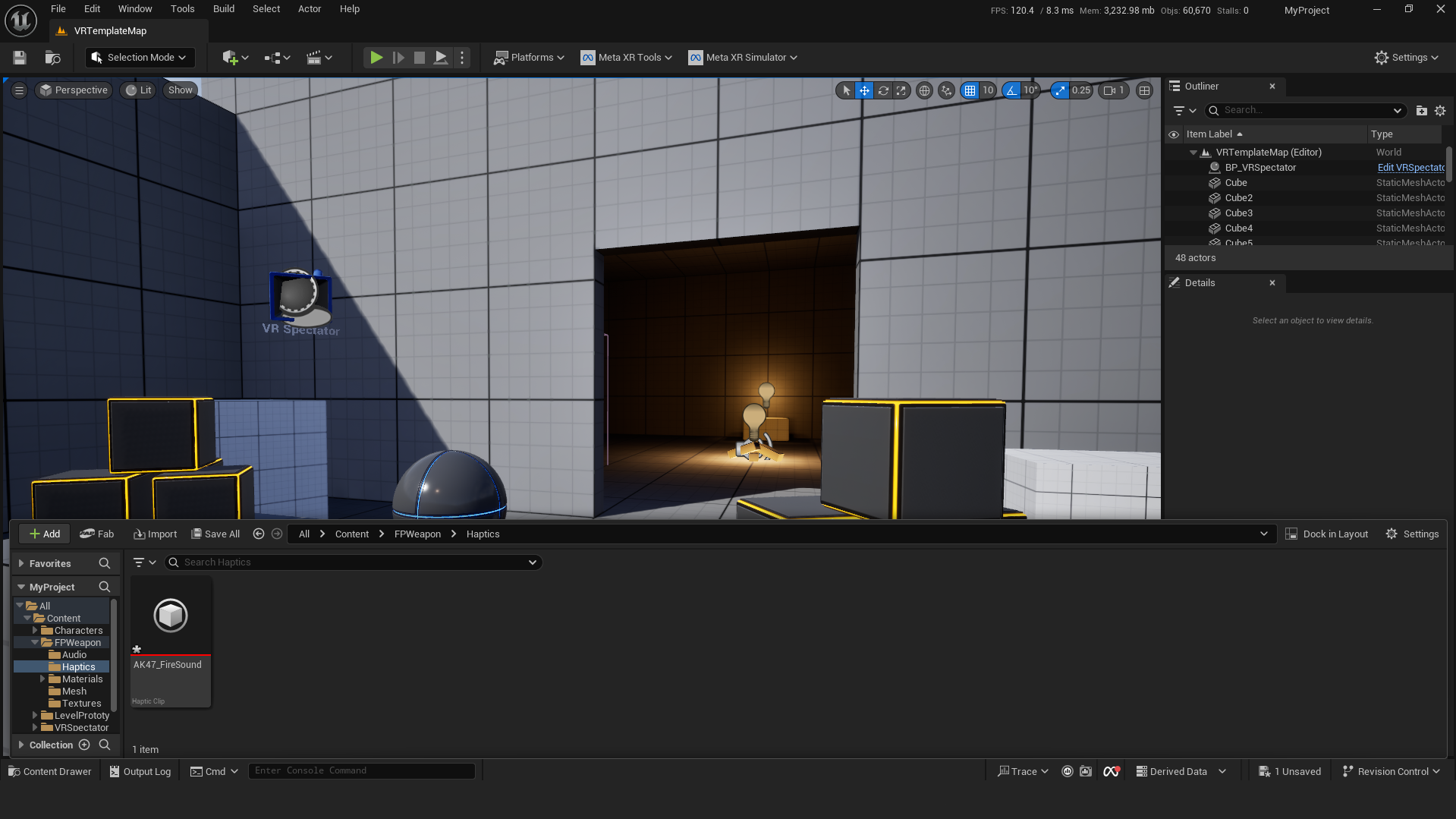
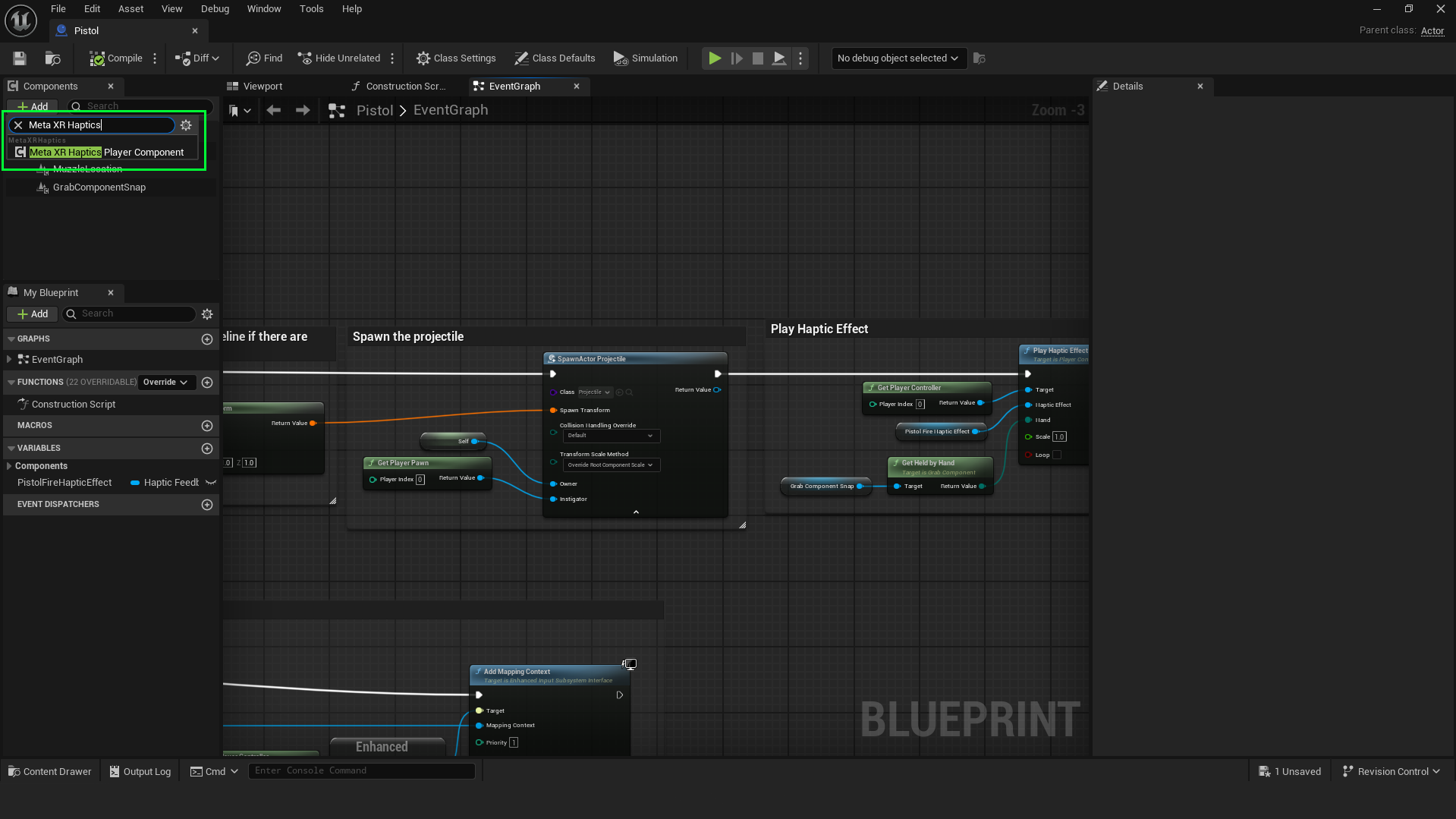
Drag your .haptic file into the Unreal Content Browser. Then, open your target Blueprint (e.g., Pistol BP) and add the “Meta XR Haptics Player” component.
Final Blueprint Setup
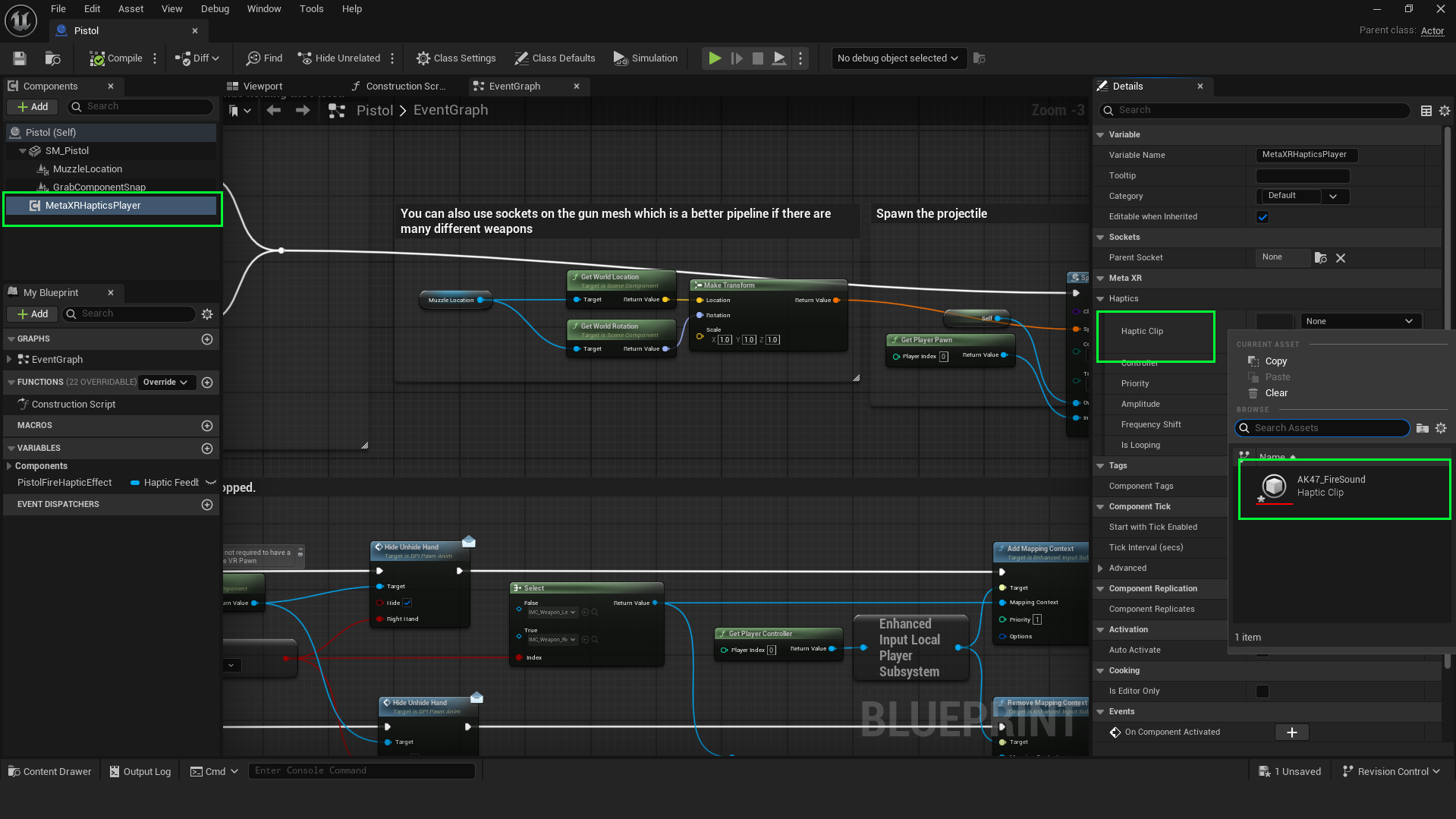
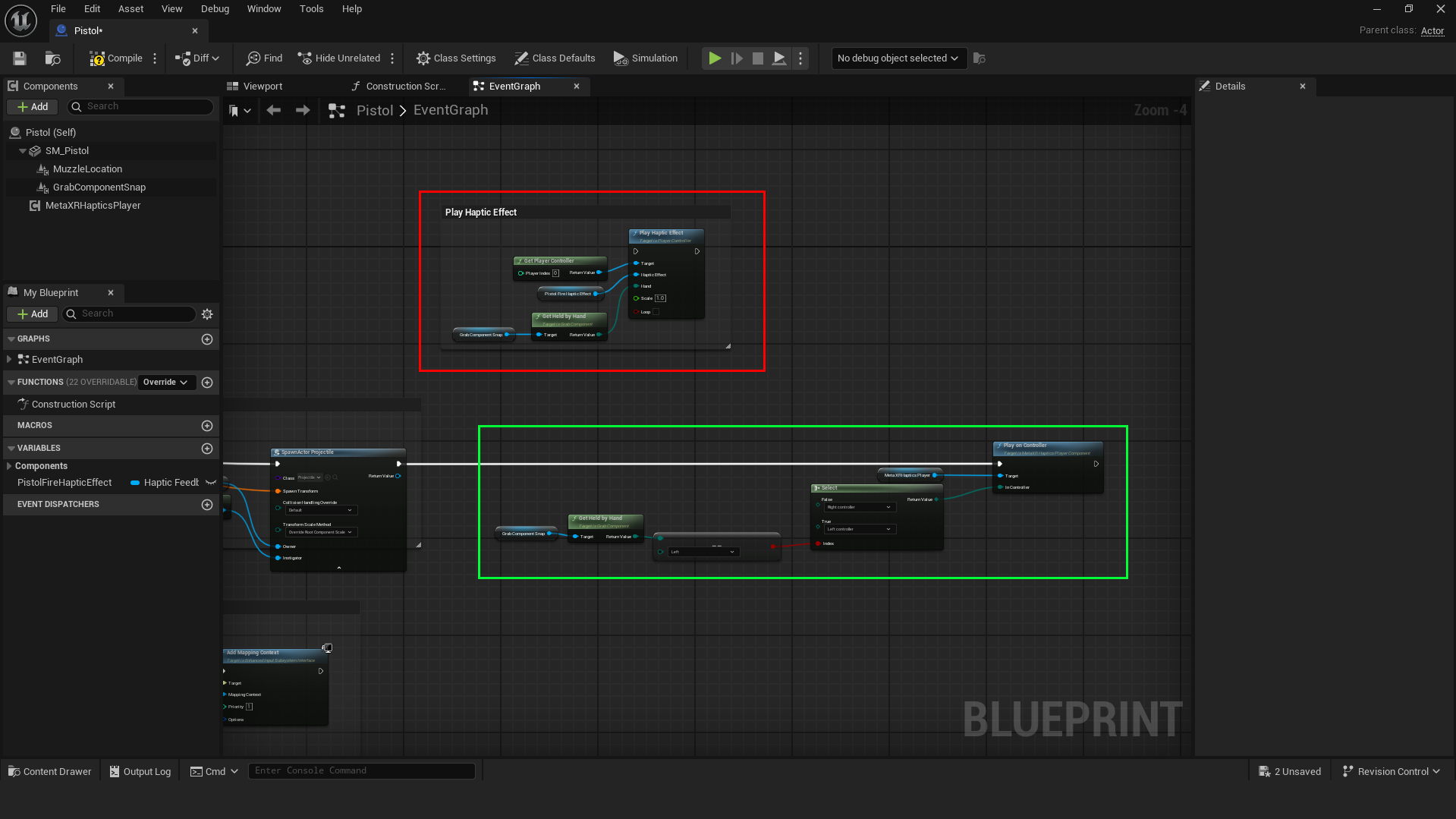
Select the Haptics Player component. In its Details panel, assign your imported .haptic clip to the Haptic Clip slot. Finally, in the Event Graph, call the “Play On Controller” function from the component to trigger the effect.
The Final Blueprint: Completing the Tutorial
Here is the complete, interactive Blueprint for the firing logic, concluding our Meta Haptics Studio Unreal Engine tutorial.
Conclusion: The Future is in Your Hands
We’ve gone from theory to a fully functional, tactile pistol in Unreal Engine. As you can see, the process is remarkably streamlined. The ability to quickly design and implement rich, meaningful haptic feedback is no longer a luxury for large studios; it’s an accessible tool for creators everywhere.
Now the question is, what will you create? What groundbreaking experiences can you imagine building with this technology? Share your ideas in the comments below!
If you found this Meta Haptics Studio Unreal Engine tutorial valuable, please consider sharing it. For professional inquiries or to discuss a potential project, feel free to contact us directly.