Bring Conversational AI to Unreal Engine with HttpGemini
A lightweight, powerful, and Blueprint-ready plugin to connect your projects with Google’s Gemini API at runtime. No C++ required.
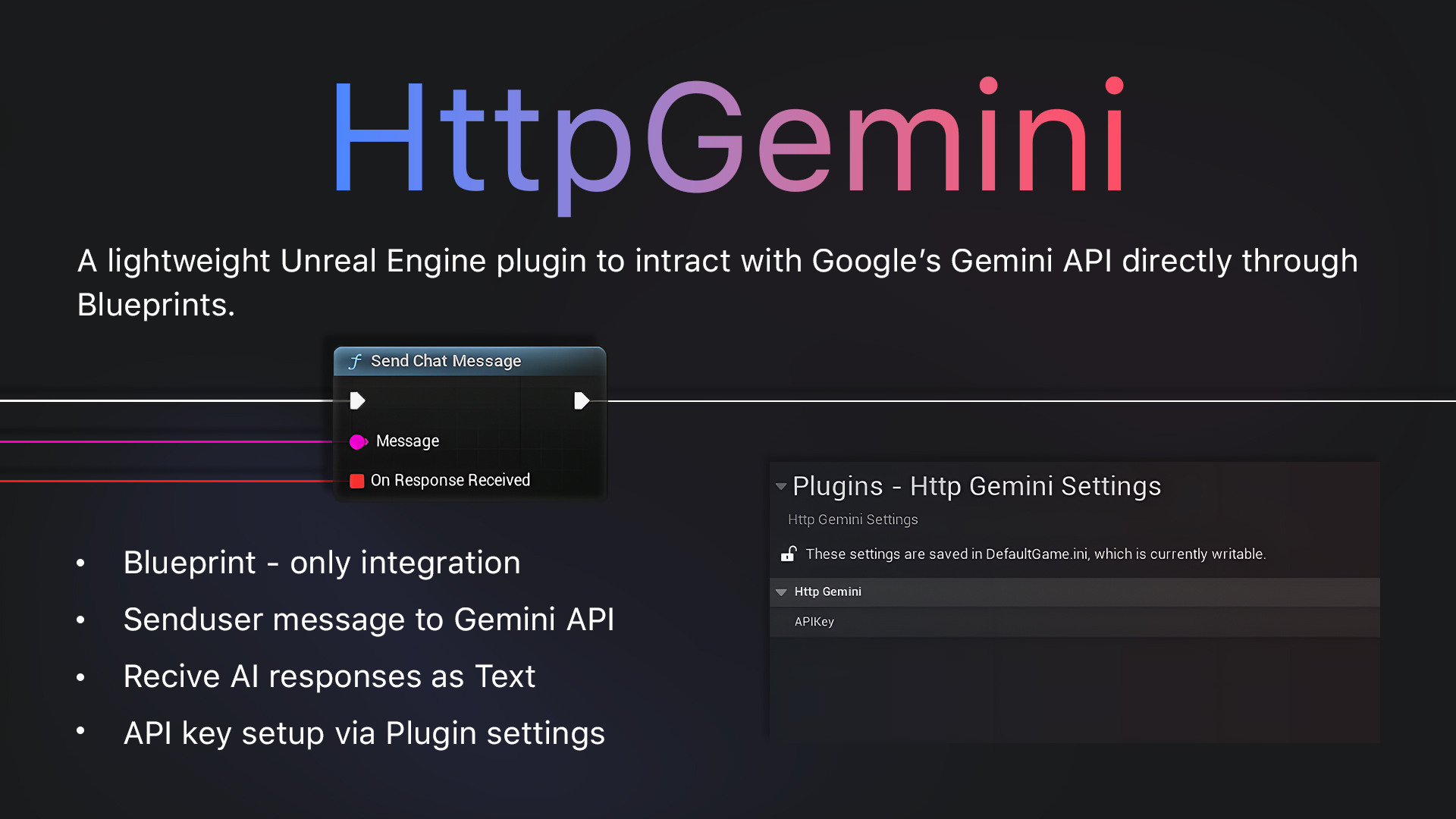
Powerful, Simple, Integrated
All the tools you need to build next-generation NPCs and intelligent systems.
100% Blueprint Ready
Access all functionality through a single, easy-to-use asynchronous node. Perfect for designers and artists.
Runtime Communication
Send prompts and receive AI-generated responses live in your packaged game or application.
Easy Configuration
Simply set your API Key and Gemini Model in the Project Settings. No code changes needed.
Asynchronous by Design
API requests are non-blocking, ensuring your game’s performance remains smooth with no freezes or hitches.
Robust Error Handling
Get clear, actionable feedback on connection issues or invalid API keys directly in your Blueprints.
No External Dependencies
Self-contained and built using Unreal’s native modules for maximum stability and compatibility.
Simple, Fast, and Powerful
Get up and running in just a few minutes with our intuitive workflow.
Install & Enable
Add the plugin to your project and enable it in the Plugins window.
Configure Settings
Go to Project Settings and paste in your API Key.
Use in Blueprint
Call the `SendChatMessage` node and handle the response with a Custom Event.
Technical Specifications
- ◆Supported Engine Versions: 5.5, 5.6 & up
- ◆Supported Platforms: Windows (64-bit), Android
Important Requirements
- ◆Valid API Key: A key from the Google AI platform is required. (Follow our 1-minute guide)
- ◆Internet Connection: Required at runtime to communicate with the API.
Troubleshooting
Common questions and solutions.
Error: `API Key not set`
+Solution: Navigate to `Project Settings > Plugins > HttpGemini` and enter your valid API key.
Error: `HTTP request failed`
+Solution: Check your internet connection and ensure your API key is correct. A `4xx` response code indicates a problem with your request/key, while `5xx` indicates a server-side issue with Google’s API.
Error: `Could not parse response` or the response is empty
+Solution: Double-check the Gemini Model selected in the plugin settings to ensure it is valid (e.g., `Gemini 1.5 Flash`).